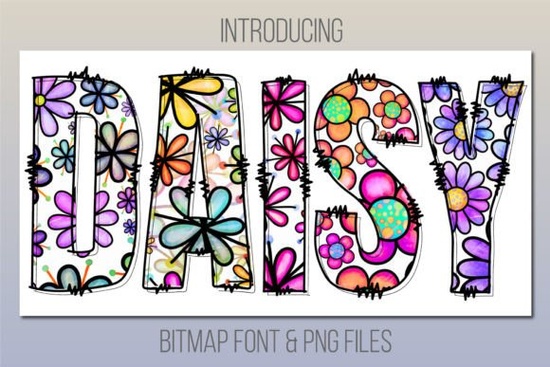
The Daisy Font is a cheerful, daisy-print color font that brings a playful, textured look to any design. Each letter is filled with colorful daisy flowers no extra illustration needed. It's a solid choice for greeting cards, party invitations, kids' products, social media posts, and print-on-demand designs. But there are a few compatibility details worth knowing before you download it. Let's break it all down.
What software do I need to use the Daisy Font?
This is a color font (also called a bitmap font), which means it doesn't work everywhere the way standard fonts do. You'll need one of the following:
- Photoshop CC 2017 or newer
- Illustrator CC 2018 or newer
- InDesign CC 2019 or newer
- MacOS apps Fontbook, Pages, or Keynote
Important: The Daisy Font is not compatible with Cricut Design Space. If you rely on Cricut for your crafting, don't worry there's a workaround covered below.
For a deeper look at how color fonts differ from standard typefaces, Adobe's guide on color fonts is a helpful reference.
Who is this font a good fit for?
The Daisy Font works well across a range of creative projects. Here are some common uses:
- Print-on-demand sellers Add a fun, floral touch to t-shirts, tote bags, and mugs.
- Small business owners Create cheerful branding, packaging inserts, or thank-you cards.
- Party planners and DIY crafters Design invitations, banners, and table decor with a fresh look.
- Social media creators Make standout Instagram posts, stories, or YouTube thumbnails.
- Teachers and parents Use it for classroom materials, name tags, or fun worksheets.
If you're building a collection of playful typefaces, you might also want to explore other vibrant and colorful fonts that bring similar energy to your designs.
What if I don't have compatible software?
Not everyone works in Photoshop or Illustrator, and that's completely fine. The Daisy Font download includes bonus PNG files of each character. You can drag and drop these into pretty much any design tool Canva, Procreate, PicMonkey, Google Slides, you name it.
This is especially useful if you:
- Use Cricut Design Space for cutting projects
- Prefer working in Canva or other browser-based editors
- Only need the font for a one-time project
The PNGs give you the same colorful daisy texture without needing professional design software.
How does it compare to other playful fonts?
Most playful or decorative fonts are still single-color, even if the letter shapes are fun. The Daisy Font stands apart because of its floral, multi-color pattern built right into every glyph. It gives designs an illustrated, handmade feel without any extra effort on your part.
If your projects target a younger audience or family-friendly branding, there are some great kid-friendly colorful fonts that pair nicely with the Daisy Font for layered compositions. And if you love the daisy theme specifically, you can browse a full collection of daisy-themed color fonts to find the perfect match.
Tips for getting the best results
- Use a larger font size. Color fonts show their detail best at bigger sizes small text can look muddy or unclear.
- Pair it with a simple sans-serif. Since the Daisy Font is bold and decorative, it works best alongside clean, minimal body text.
- Test before committing. Try a quick mockup first to make sure the color font renders correctly in your software.
- Export at high resolution. Because this is a bitmap-based font, low-res exports can appear pixelated.
Quick checklist before you download
- Do you have Photoshop CC 2017+, Illustrator CC 2018+, InDesign CC 2019+, or a compatible MacOS app?
- If not, are you comfortable using the bonus PNG files instead?
- Will you use it at a larger size where the daisy detail shows clearly?
- Do you have a project in mind invitations, POD products, branding, or social media graphics?
If you said yes to most of these, the Daisy Font is a great pick for adding a warm, cheerful feel to your next creative project. Start with a small test design, see how it looks in your workflow, and go from there.
Learn More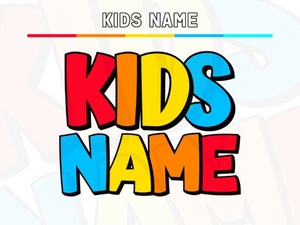 Creative Kids Name Fonts for Fun Personalized Projects
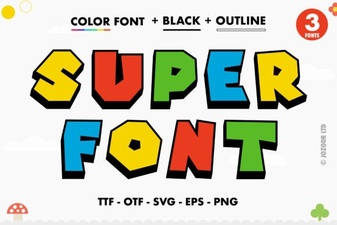 Super Font: Bold Typefaces for Creative Design Projects
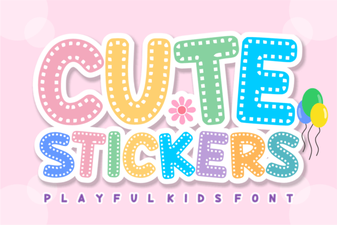 Adorable Font Ideas for Craft Projects
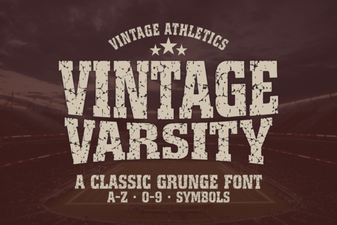 Vintage Varsity Font: Classic Display Typeface for Bold Designs
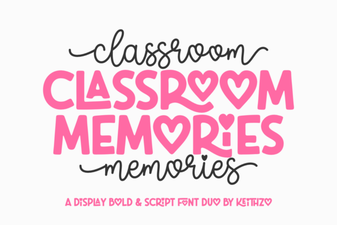 Classroom Memories Font – Fun Chalkboard Style Display Typeface
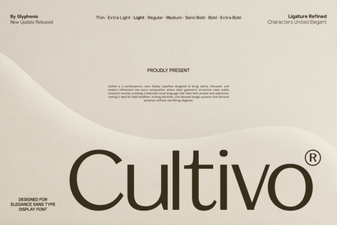 Cultivo Font: a Fresh and Creative Typeface for Designers